The required application is missing
Check the installation and version of the applications approved for the terminal together with the distributor.

Connection interfaces, device preparation, and configuration in FiscalNET.
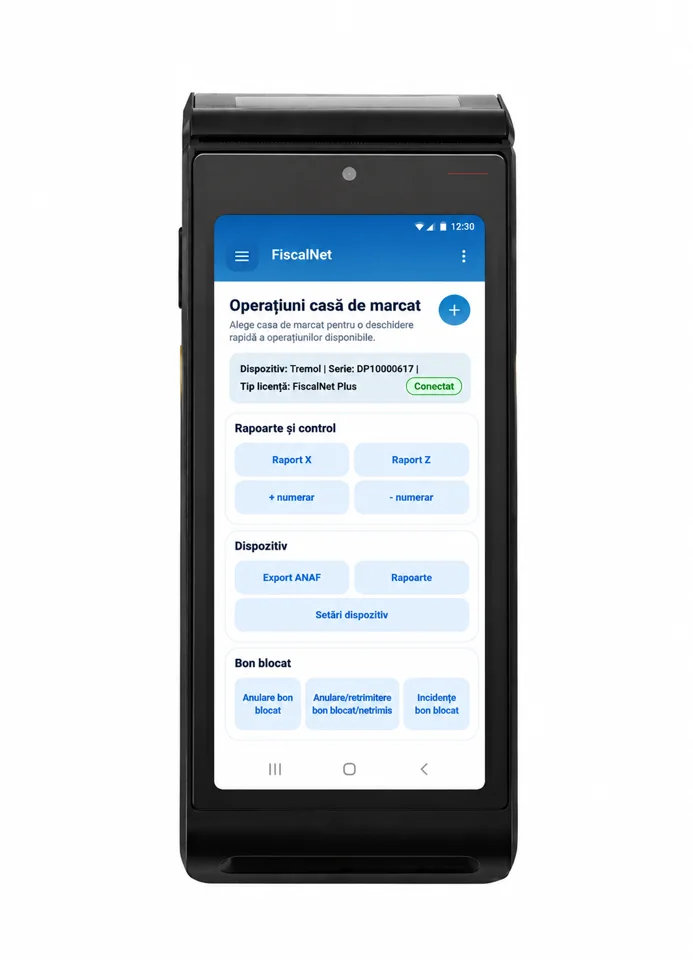
Mobile all-in-one fiscal equipment: Android, fiscal printing and payment functions in a single compact unit.
FiscalNET integration takes place between Android applications, either locally or over a network; USB-C is not documented as a COM port for a fiscal printer.
The terminal runs Android. The following steps describe its preparation; the FiscalNET package and the available functions are confirmed for the installed configuration.
Check the BlueCash model, the Android version, and the fiscal applications installed. Note whether the sales application is running on the terminal or on a separate computer.
Request from the distributor the FiscalNET version and the Datecs components compatible with the terminal. Use the approved installation channel for the device.
POST http://localhost:65400/api/Receipt on the terminal or to its IP address on the local network, as specified by the FiscalNET team on 19 October 2026. Intent remains available for Android apps on the same device.
Activation of the banking module and the card acceptance agreement are verified with the terminal provider/bank. Configuring the fiscal application does not activate the payment service on its own.
Start with a status query. Check the fiscal response and the payment result separately, including when the user returns from the banking app.
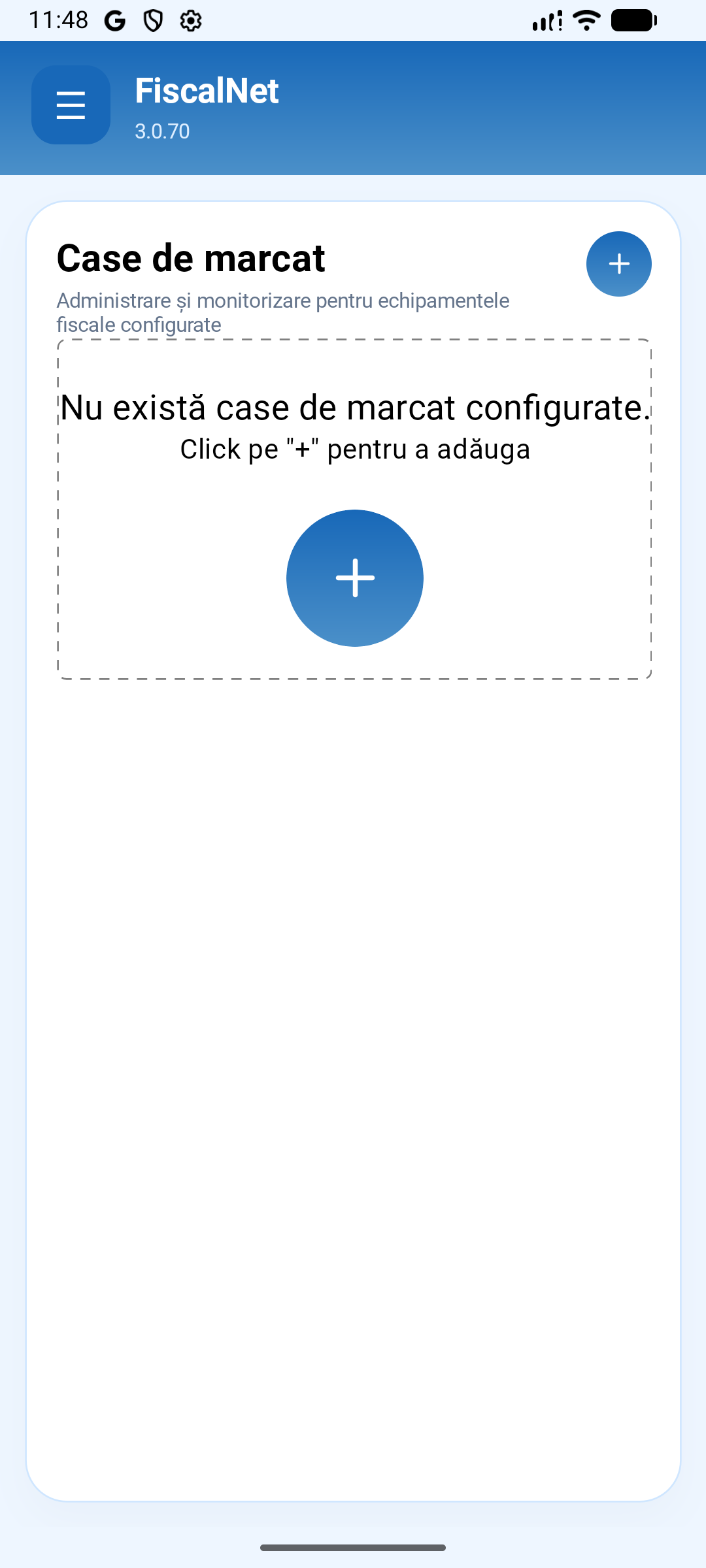
The screenshots show the standard FiscalNET V3 application in the emulator. For the integrated printer, use the terminal package and profile; menus may differ.
Check the installed distribution and version. The image shows the Case de marcat page in the standard application; the manufacturer's package may have a different flow.
 Enlarge image
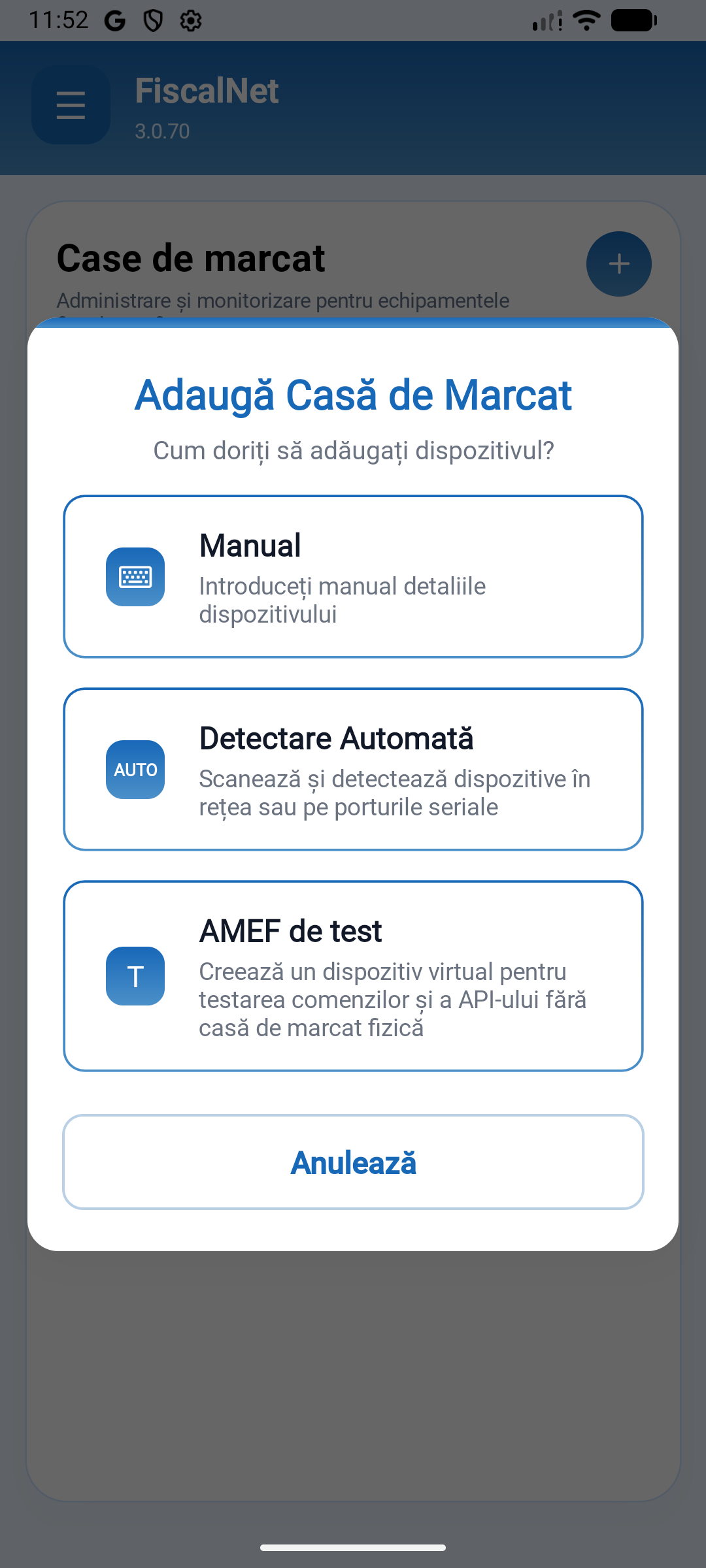
The General Dialogue offers Manual, Automatic Detection and Test AMEF. Do not select an external cash register profile for the integrated printer without following the terminal procedure. The test AMEF is virtual; it does not represent the physical device.
 Enlarge image
Follow the preparation documented below and confirm the profile, the installed services and the status of the device. For the PC-based sales application, refer to the Windows section; do not use the COM number from an external cash register form.
This model is an Android terminal. If the sales application is running on Windows, the connection to the terminal is established through the integration supported by the installed FiscalNET package; it does not automatically configure as a cash register on a COM port.
Prepare FiscalNET and the appropriate Datecs components for BlueCash 50, with the help of the distributor. Confirm the application's local response before connecting the PC.
The PC and the terminal must be able to communicate on the local network. Make a note of the terminal's IP address. Do not publish the FiscalNET service directly on the internet.
In the HTTP integration, the application on the PC uses the terminal's address. localhost on the computer refers to that computer, not the Android terminal. The documented API contract for application commands and responses follows.
Check the status and identification of the equipment, then the integration responses. Bank payments are configured separately, with the terminal provider; they are not activated simply by installing FiscalNET.
Check the installation and version of the applications approved for the terminal together with the distributor.
Check the agreed local or network route and the integration contract in the guide. Retain the request identifier and the response for diagnostics.
Check the result of the banking application and the fiscal status before resuming. A communication interruption does not prove that the payment failed.
Send the device model, the connection used, the FiscalNET version, and the error message.
Download FiscalNet and configure your equipment.