
Install and configure FiscalNet on Linux
From installing FiscalNet to connecting your point-of-sale application, in five illustrated steps.
Installation steps 1 / 5
Step 1 of 5
Before you begin
Prepare a desktop Linux x64 system and the confirmed cash-register settings. The application was checked in the laboratory on Ubuntu 24.04 LTS; confirm compatibility with other distributions for the package you use.
On Linux, use the manual configuration in this guide. Automatic discovery is not yet functional.
01Install FiscalNet
The Linux installer will be available soon. If FiscalNet is already installed, continue with step 2.
02Start FiscalNet
Start FiscalNet and check that the Cash Registers page opens. If you have a FiscalNet shortcut, you can use it to start the application.
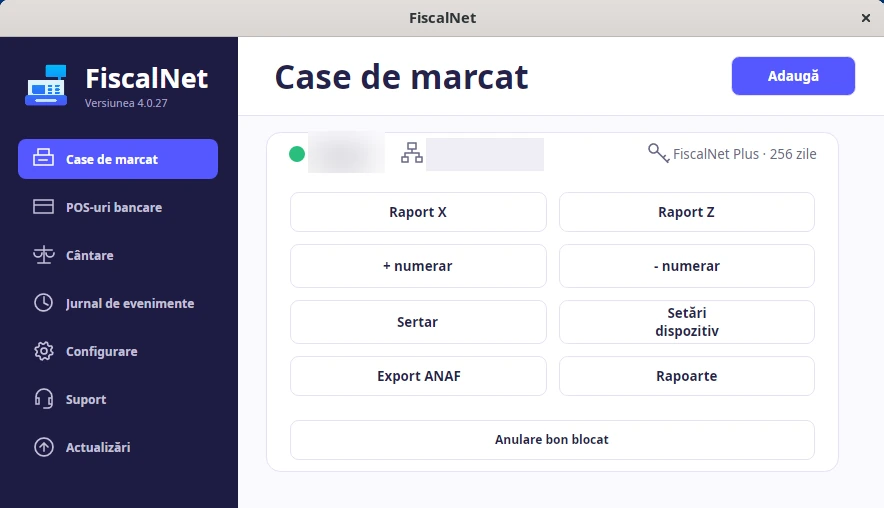
03Add the device manually
In the app, choose Case de marcat → Adaugă → Manual. Select the manufacturer and enter the device name.
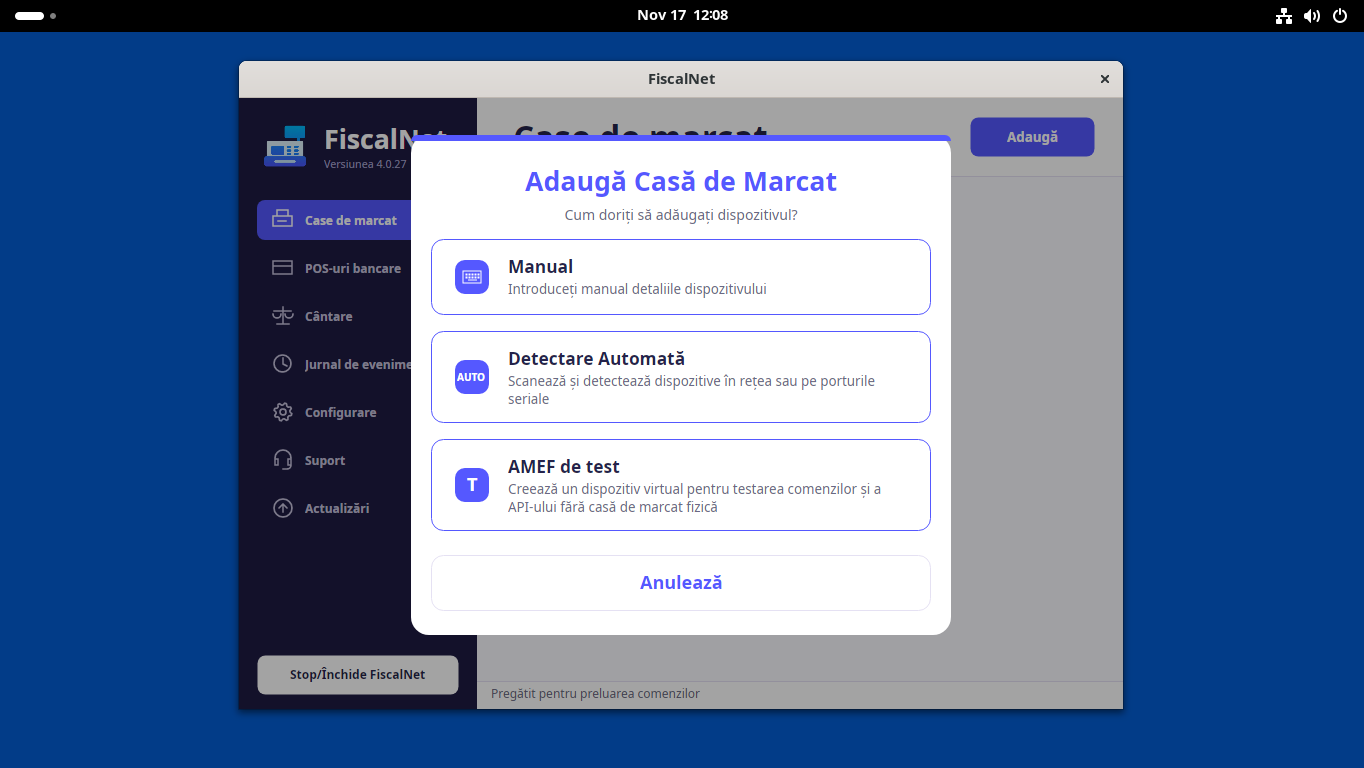
04Configure the connection
Network
Choose LAN / Wi-Fi and enter the confirmed device IP address and TCP port. The Linux computer and cash register must be able to communicate on the configured network.
USB / Serial
Choose USB / Serial and the serial port recognised by Linux. Check the port path and access permissions on the system in use. In a virtual machine, the USB device must be available inside Linux.
Use Testează conexiunea și salvează. Confirm the cash-register identification and status before use; checking the connection does not require issuing a receipt or Z report.
05Connect your sales application
With FiscalNet running, check the local service from the terminal:
curl http://127.0.0.1:65400/api/healthYour sales-application provider configures HTTP integration with POST /api/Receipt and handles the operation response. Another computer on the network uses the address of the device running FiscalNet and the access rules set by the administrator.
Linux integration documentationHelp and resources
If the application does not start, note your Linux distribution and the error message for support. For USB connection issues, check the port and your account permissions.