The serial port is not responding
Check the power supply, the serial cable and the computer's COM port.

Connection interfaces, device preparation, and configuration in FiscalNET.
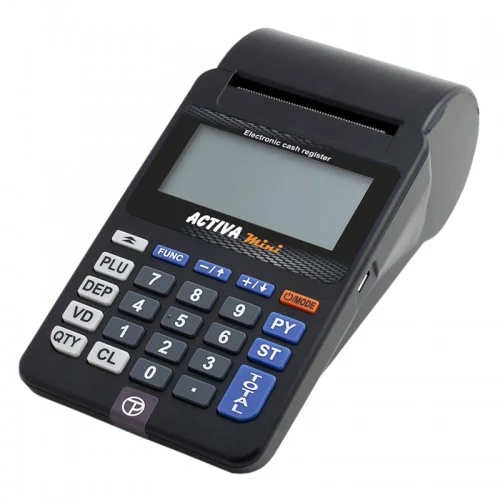
Activa S25 Mini: Identifying the variant and preparing the connection to FiscalNET.
The Wi-Fi and GPRS/Bluetooth variants have different features. The model datasheet confirms mobile connectivity via Bluetooth or Wi-Fi; Micro USB also serves for charging.
Check the name on the label, the equipment serial number and the installed firmware.
Consult the ports and options of the installed variant. Use the cable or wireless connection appropriate for the equipment.
On Windows, install the USB interface driver if necessary. On Android, check the connection method supported by the terminal and by the FiscalNET version.
Select the device profile and the confirmed parameters for the installed version. Ask the distributor for the correct steps if they are not documented in the manual.
Close the other utilities that use the device and read the status from the FiscalNET configuration. Check the result before starting the sale.
The screenshots show the application menus, not a connection tested with every model. Use your device’s parameters; on Android, confirm the supported profile and interface for the installed model.
Open Fiscal Equipment → Cash Registers and tap + Add. Select Manual to complete the device profile and parameters. If the device already exists in the list, open its configuration.
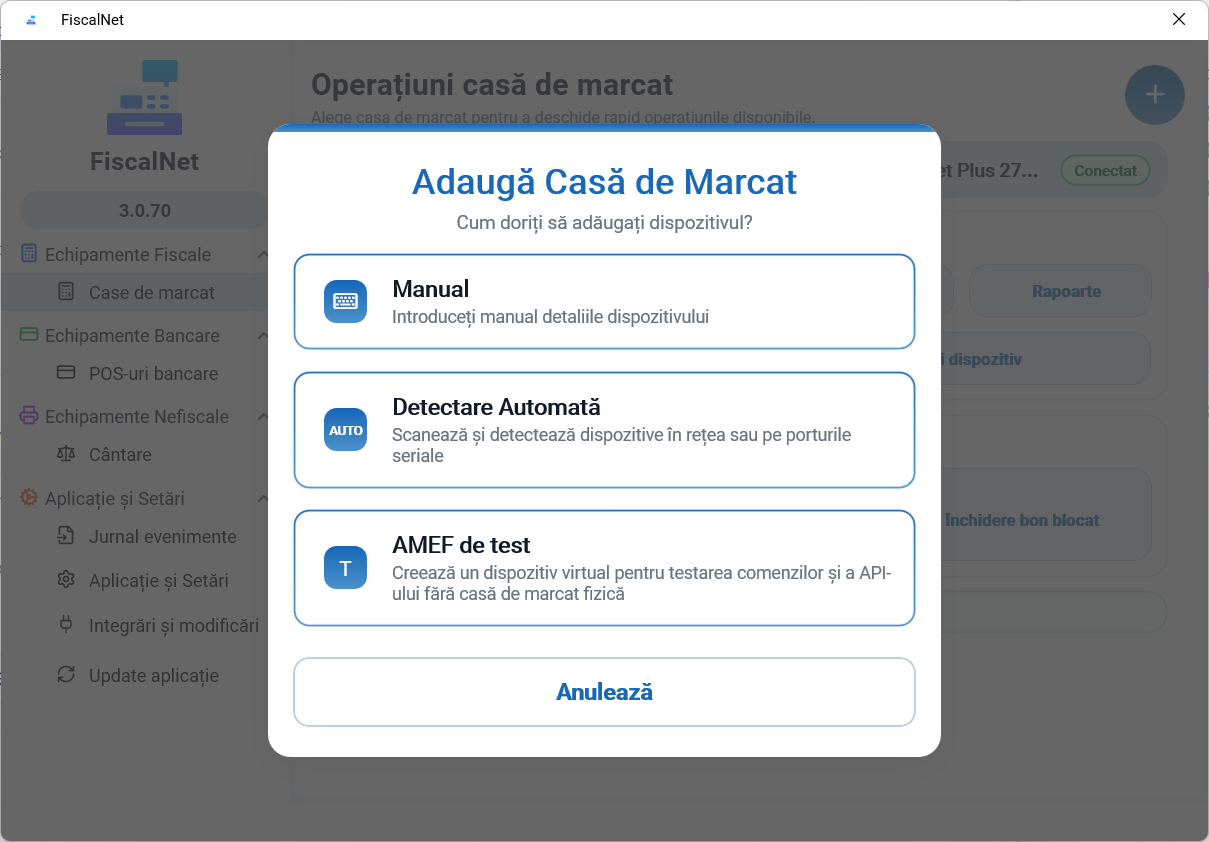 Enlarge image
Choose the profile that matches the model. For the documented network, enter the IP address and the port of the device. The values shown in the screenshot are examples.
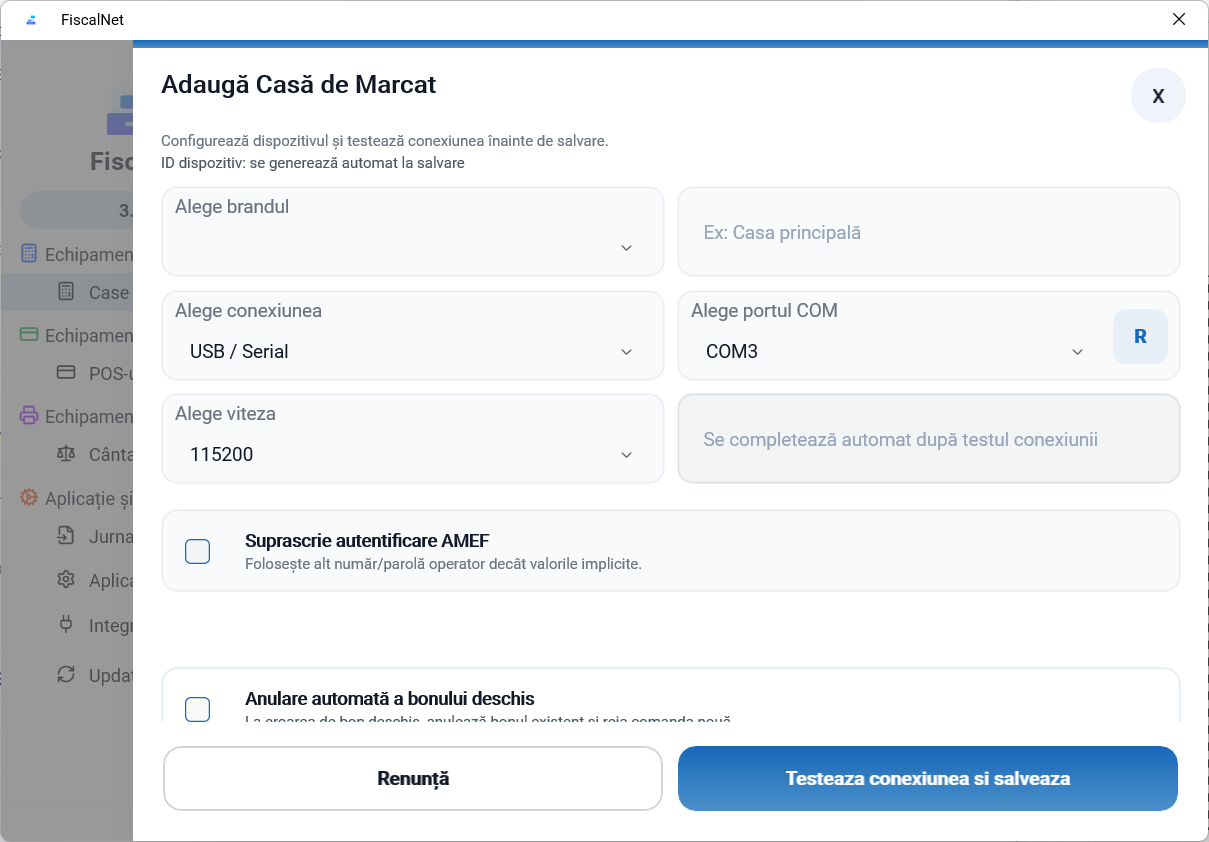 Enlarge image
Use Test Connection and check the device’s identification and status. Save the configuration after a correct response.
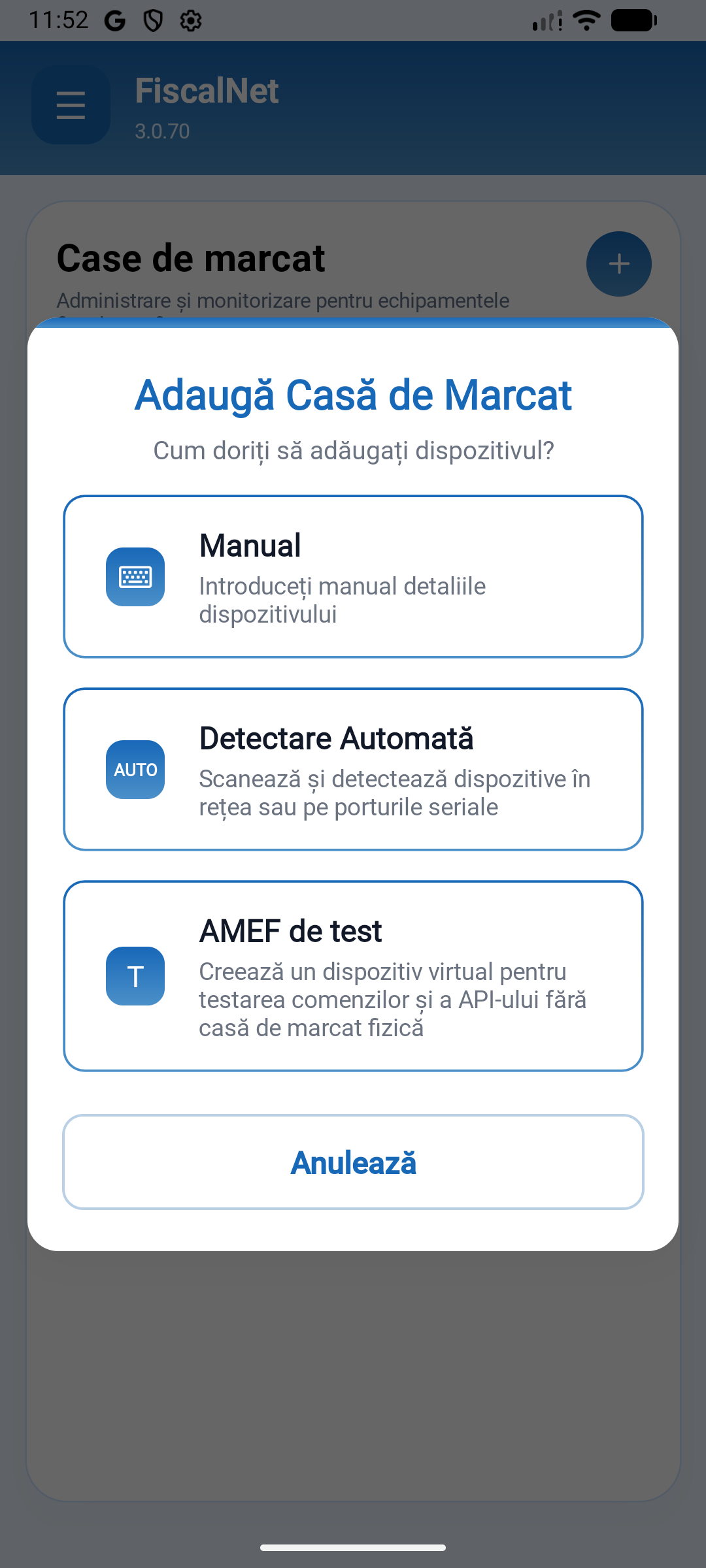
If the device is not respondingIn FiscalNET, open Case de marcat and tap +.
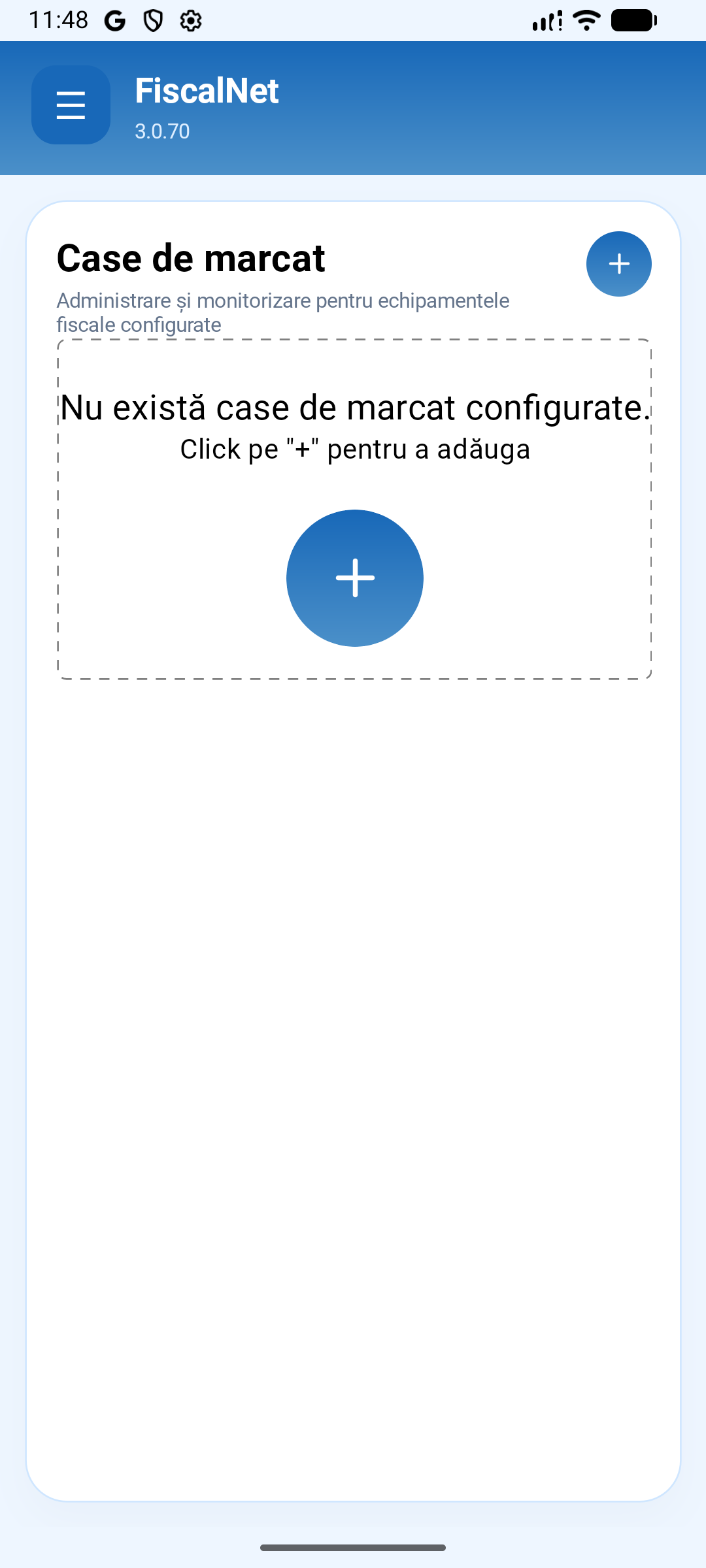 Enlarge image
Select Manual to complete the profile and parameters. The test AMEF is a virtual device.
 Enlarge image
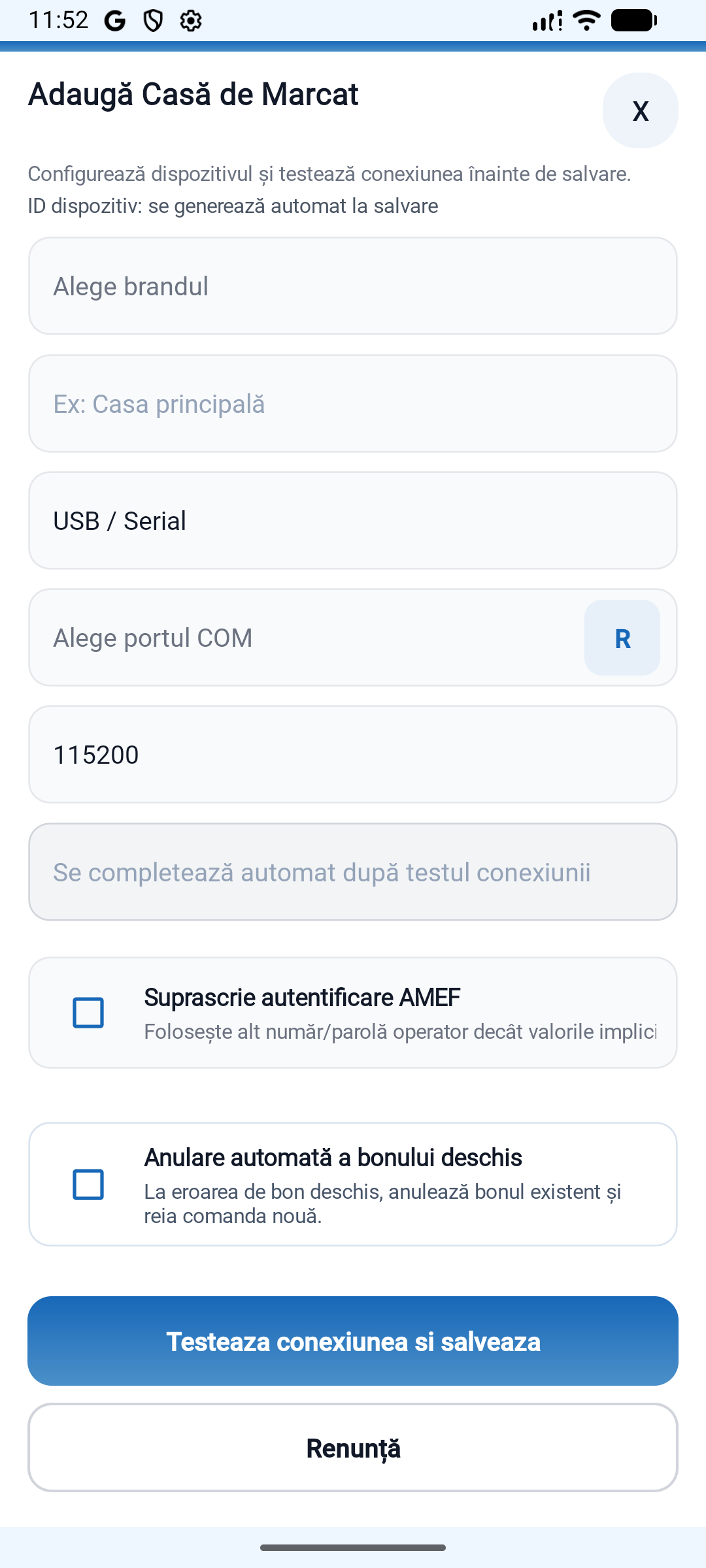
Select the supported profile for the model and open the connection field.
 Enlarge image
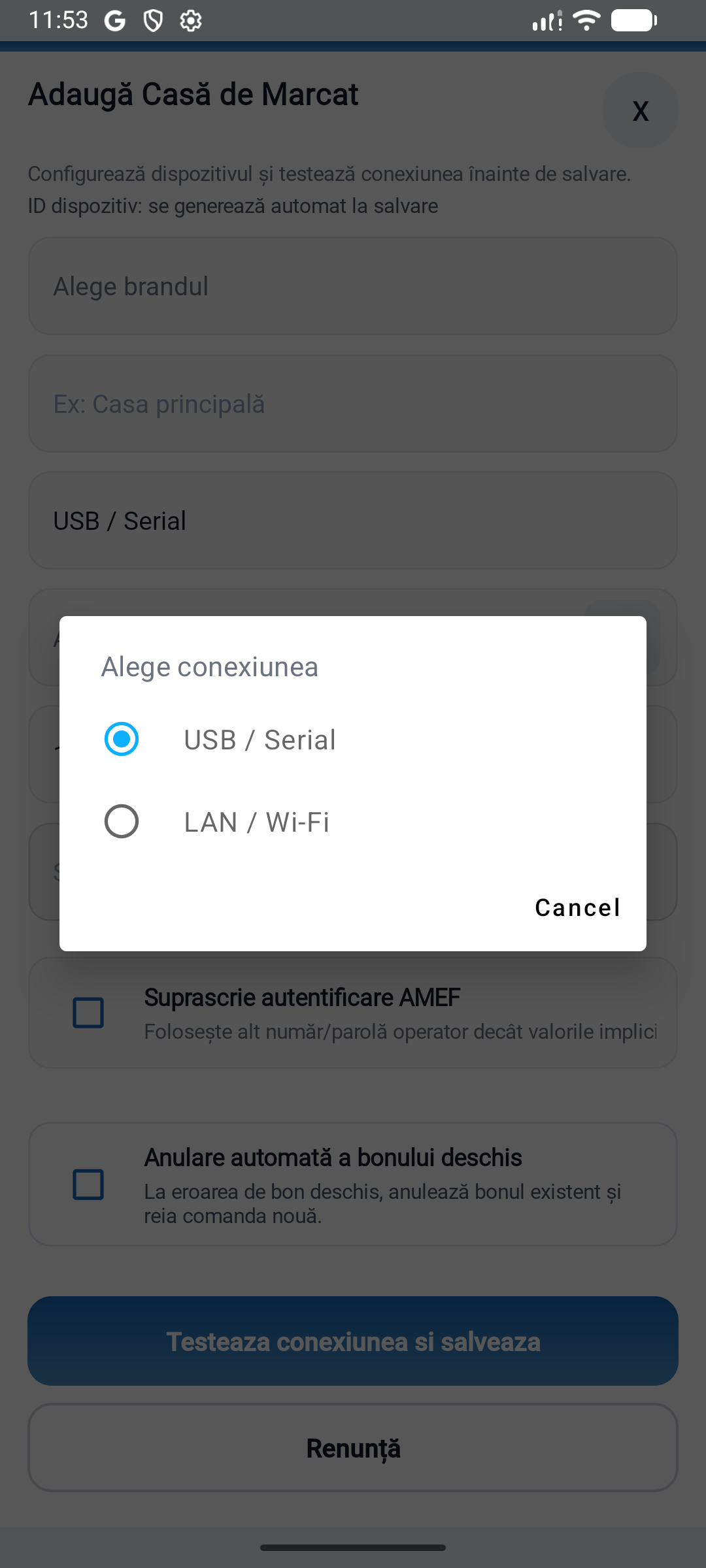
Select the interface supported by the profile and fill in the device parameters. For the network, use the configured IP address and port.
 Enlarge image
Use Test Connection and check the device’s identification and status. Save the configuration after a correct response.
If the device is not respondingDo you use FiscalNET V2? View the V2 configuration with images
Check the power supply, the serial cable and the computer's COM port.
Check the operating mode and the device profile. For the network, compare the IP address and the communication port.
Close the other programs that are using the device. After an interruption, check the status of the receipt before resending.
Send the device model, the connection used, the FiscalNET version, and the error message.
Download FiscalNet and configure your equipment.