
Is your active licence shown as expired?
If activation or renewal has been confirmed for your device, check the licence in FiscalNet. The steps below show the Windows interface.
Check the device and activation confirmation
Confirm that the activation or renewal applies to your device serial number and company tax ID, for the PRO or PLUS licence you purchased. If you only have payment confirmation, ask the supplier to confirm activation for that device as well.
Also check that the computer has internet access, which is required for the online licence check.
Check the licence in FiscalNet
Select the correct cash register
Open “Case de marcat” (Cash registers) and identify the device whose licence has been activated or renewed. If several cash registers are configured, use the card for the correct device.
Open “Setări dispozitiv” (Device settings)
On the cash-register card, select “Setări dispozitiv” (Device settings). In the window that opens, check the device name and serial number.
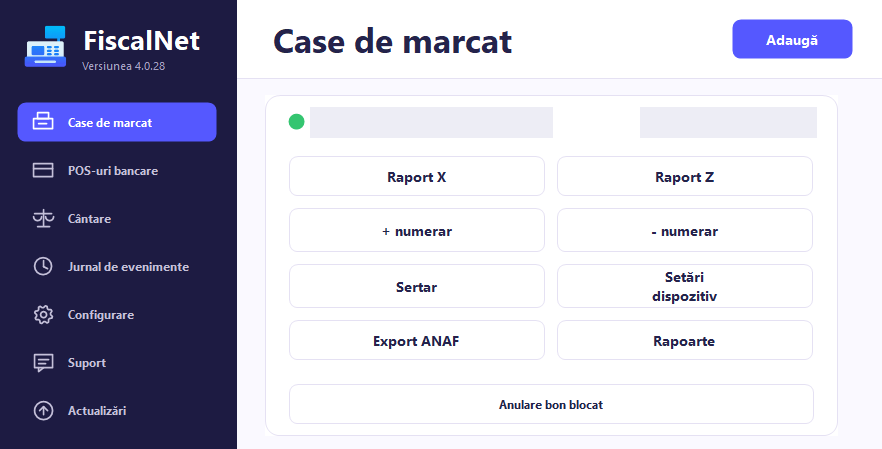
Cash registers: the “Setări dispozitiv” (Device settings) button is on the device card. Identification details are masked in this example.Open the image in a new tab to enlarge it. Select “Verifică licența” (Check licence)
In the “Configurări generale” (General settings) tab, select “Verifică licența” (Check licence). Use this command to check the licence of the selected device.
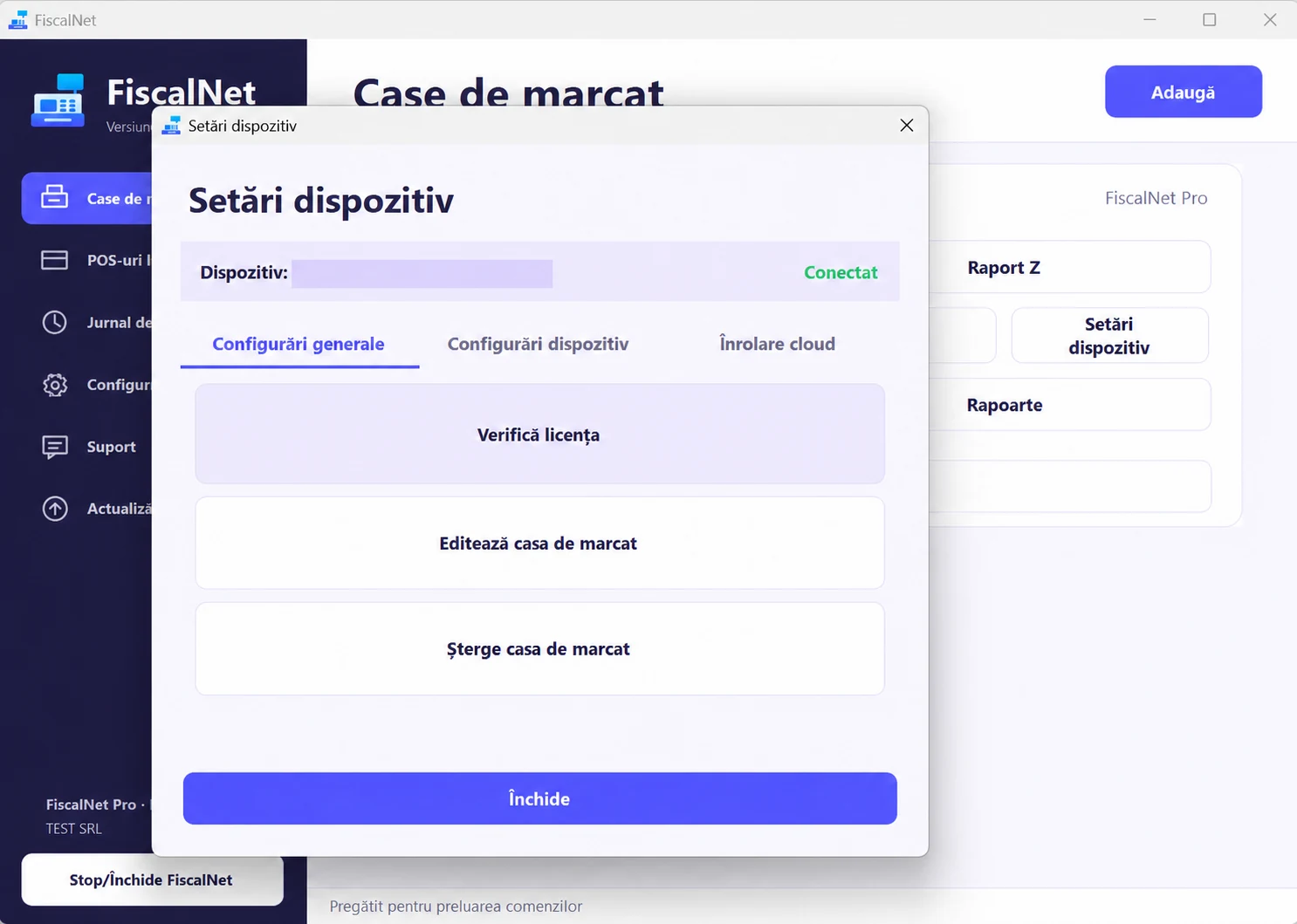
Illustrative FiscalNet for Windows screenshot: Device settings → General settings → Check licence. The identifier is masked; the interface is in Romanian.Open the image in a new tab to enlarge it. Read the check result
Read the message shown by the application. Close the settings window and check the licence information on the same cash-register card. If it still appears expired or the check reports an error, keep the exact message for support.
What to send if the issue persists
Contact the supplier you bought the licence from or the FiscalNet team. Prepare:
- The device serial number or identifier used for licensing, and the company tax ID.
- The purchased licence, the activation or renewal confirmation and the order reference.
- The FiscalNet version and a screenshot of the message shown after the check.
If payment is already confirmed, clarify the situation with the supplier before paying again.
Get help with your licenceUsing a different interface?
The screenshots and steps above are for FiscalNet on Windows. For Android or Linux, consult the platform guide; if you cannot find the same command, send support your version and a screenshot.
FiscalNet Old has a separate interface and activation instructions. Instructions for FiscalNet Old.